

 Русский
 Bahasa Indonesia
 فارسی
فارسی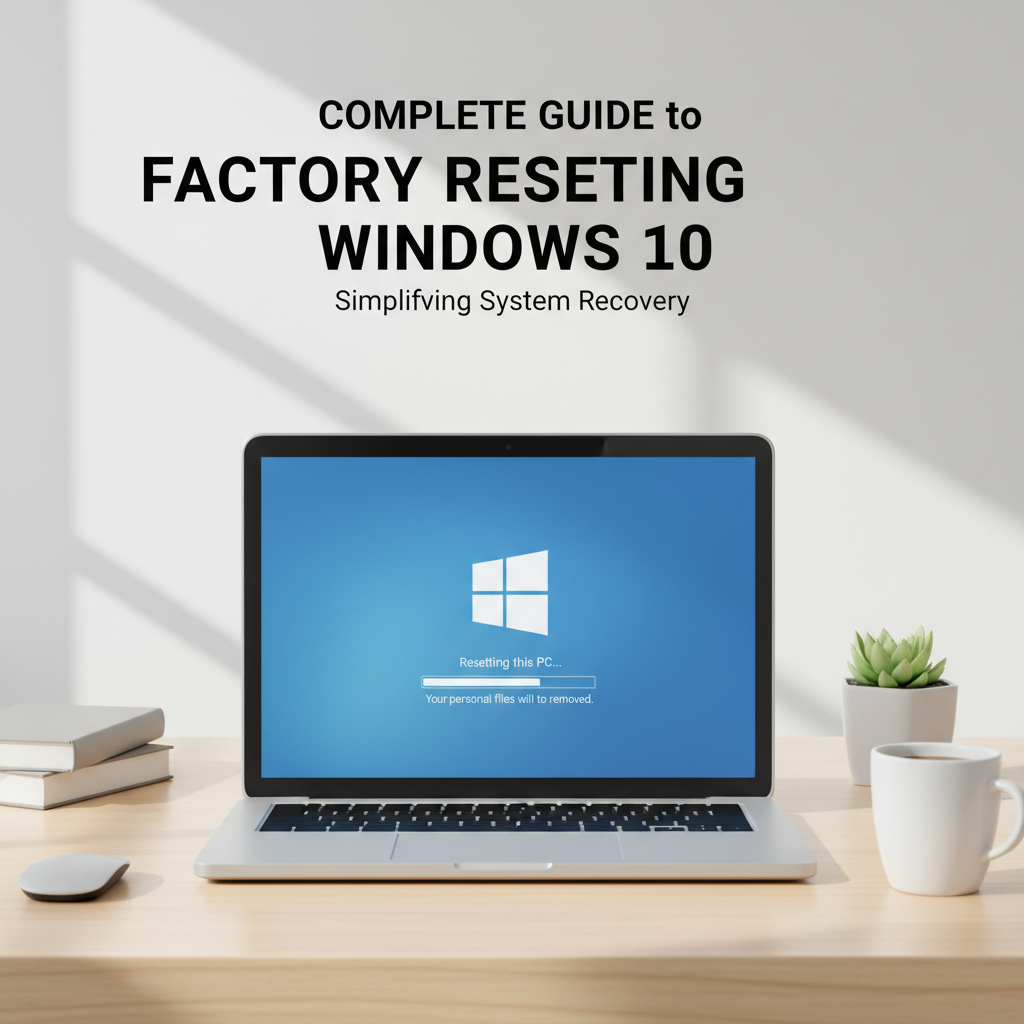
Factory resetting your Windows 10 device can resolve persistent issues, boost performance, and provide a clean slate for users. Whether you’re troubleshooting errors or preparing your PC for sale, understanding the right way to reset is essential. This article explains, in depth, how to successfully factory reset your Windows 10, safely and effectively.
How to Factory Reset Windows 10 Safely and Effectively
Before starting the reset, it is critical to back up your important documents, photos, and any desired files to an external drive or cloud storage, as some reset options can completely erase your data. To use the built-in Windows 10 reset feature, open the Start menu, go to Settings, select Update & Security, and click on Recovery. Under “Reset this PC,” choose Get started. You will be prompted to select either “Keep my files” or “Remove everything.” Selecting “Keep my files” preserves your personal files but removes installed apps and settings, ideal if your system has software issues but your files are still needed. “Remove everything” is best when selling or giving away your device, or if severe problems require a completely fresh start—it erases all files, applications, and settings.
Once an option is chosen, follow on-screen instructions. You may also select whether to clean the drive, which adds security by making file recovery harder, recommended for device disposal. After confirming your choice, Windows will prepare the reset; your PC may restart multiple times during the process.
Alternatively, if Windows won’t boot or the built-in reset fails, use a Windows 10 installation media (USB/DVD). Insert it, restart the PC, and boot from the media. Select your language, then choose Repair your computer, followed by Troubleshoot and Reset this PC. This method mirrors the built-in reset options and is essential for systems not starting properly.
After the reset, Windows launches initial setup, prompting you to create user accounts and adjust preferences. Device drivers may reinstall automatically, but in rare cases, manual driver installation is needed. Be prepared to reinstall your apps and restore your personal files from backup. If you encounter issues with the reset process, Microsoft’s official guides and the Wikipedia Factory Reset page provide troubleshooting steps for corrupted recovery environments or failed resets.
Conclusions
Factory resetting Windows 10 is a practical solution for resolving errors, clearing personal data, and refreshing your device. By following the clear steps outlined, you can restore your system to default settings safely. Always remember to back up your files before starting the process, ensuring a smooth transition to a clean and efficient Windows 10 experience.