

 Русский
 Bahasa Indonesia
 فارسی
فارسی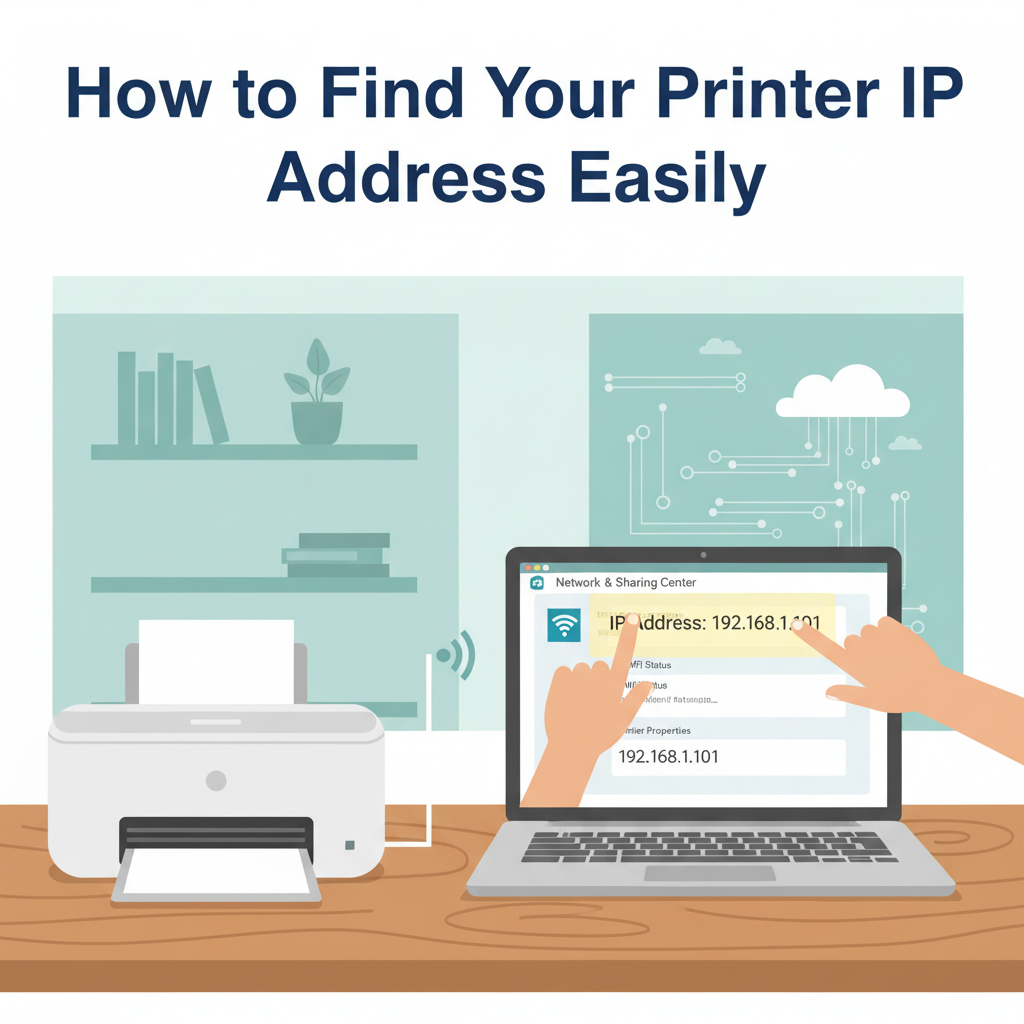
Knowing your printer’s IP address is essential for troubleshooting network issues, setting up new devices, and ensuring seamless printing from multiple computers. This guide explores the most effective methods for discovering your printer’s IP address, covering both Windows and Mac systems as well as printer control panels, so you can quickly get connected.
All Methods to Locate Your Printer’s IP Address
Finding your printer’s IP address can seem daunting, but with the right method it’s a straightforward process, regardless of your printer model or the device you’re using. For Windows users, start by opening the Settings app, navigating to Devices > Printers & scanners, clicking your printer in the list, and selecting Manage. From here, choose Printer properties, then move to the Ports tab—your printer’s IP address will typically appear listed next to the standard TCP/IP port. Alternatively, you can use the Control Panel by accessing Devices and Printers, right-clicking the printer, and opening Properties. In both approaches, wireless and wired printers are visible as long as they’re connected to your network.
Mac users should head to System Settings (or System Preferences in older versions), then Printers & Scanners, selecting the printer from the list. Press Options & Supplies; the IP address often appears under the Location or General tab, depending on the printer model.
Checking the printer itself is often the fastest way, especially for wireless printers with a built-in display. Access the control panel, enter the Network or Wireless menus, and look for network details. For printers without a display, consult the instructions to print a network configuration page—usually done by holding specific buttons or via the settings menu. This printout will show the current IP address.
You can also log in to your router’s admin console using a web browser; under connected devices or network map, locate the IP assigned to your printer. Knowing the printer’s IP is vital for advanced troubleshooting and for manually adding the device to computers or mobile devices, ensuring your printer stays reliably connected to your network.
Conclusions
Finding your printer’s IP address doesn’t have to be complicated. By following the right steps—whether through your computer, the printer’s panel, or your network—you can locate this crucial information quickly. With your printer’s IP address at hand, you’re ready to resolve network issues and streamline your printing experience across all devices.