

 Русский
 Bahasa Indonesia
 فارسی
فارسی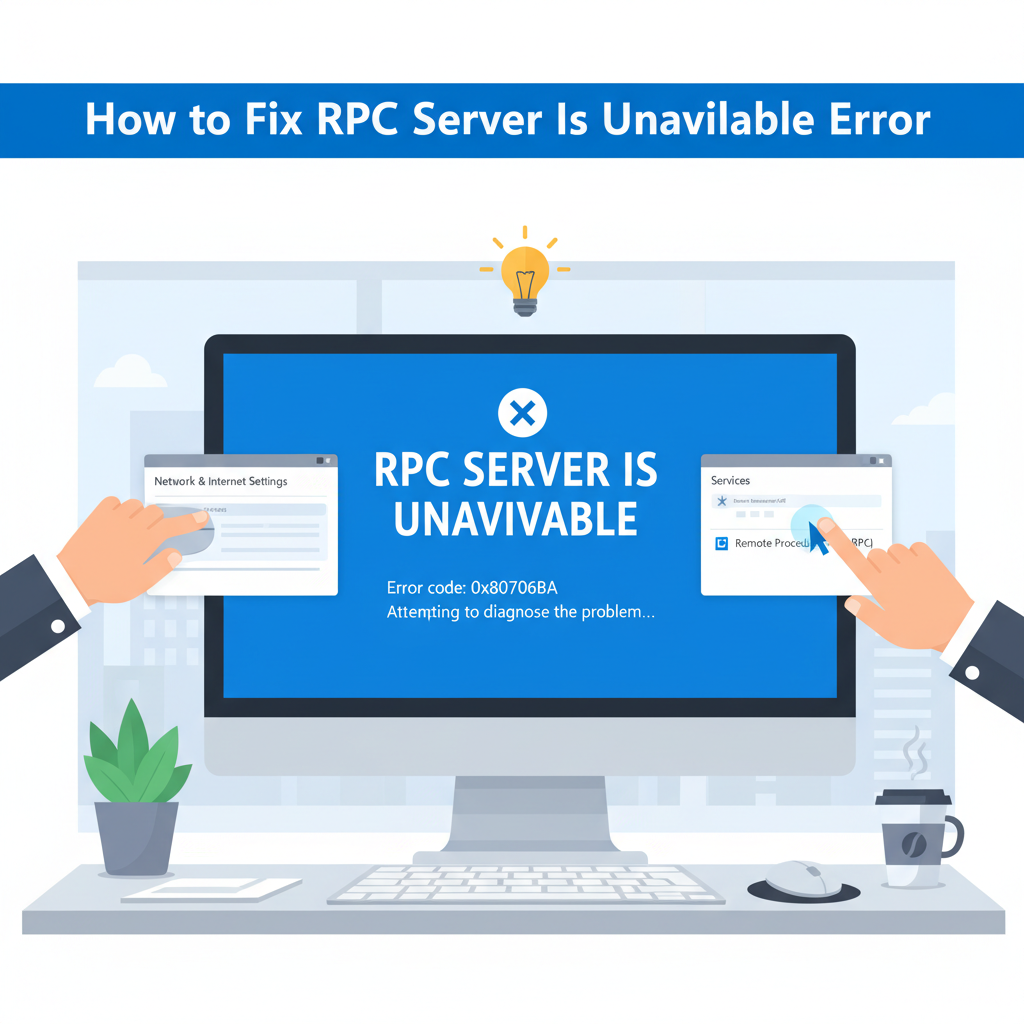
The ‘RPC server is unavailable’ error can halt many essential Windows services and disrupt daily computer use. Understanding the cause and applying the right fixes ensures seamless communication between your devices and network. In this article, learn why this error occurs and follow proven steps for a smooth resolution process.
Effective Solutions for RPC Server Unavailable Error
The RPC server functions as a critical intermediary in Windows systems, allowing processes on different computers or within the same machine to communicate and request services remotely. According to Wikipedia, the Remote Procedure Call (RPC) mechanism enables one program to execute code located on another system as if it were a local procedure call. When the RPC server is unavailable, essential operations such as file sharing, printer access, and remote management fail to function, disrupting collaboration and system administration.
To address this error, follow a structured troubleshooting approach:
- Check Network Connectivity: Ensure both client and server machines are online and reachable. Use the ping command to verify network paths between systems. If connectivity fails, examine cables, switches, or Wi-Fi connections for issues.
- Verify RPC Services: The required services are Remote Procedure Call (RPC) (typically named RPCSS), DCOM Server Process Launcher, and RPC Endpoint Mapper. Launch the Windows Services console (services.msc) and confirm each of these services is running and set to Automatic startup. Restart any service that is not running.
- Configure Firewall Settings: Firewalls often block RPC communication. Open Windows Defender Firewall settings and ensure that rules permitting RPC and related ports (typically TCP 135) are enabled. On third-party firewalls, manually create rules allowing inbound and outbound RPC traffic.
- Resolve DNS Issues: Name resolution problems are a common culprit. Confirm that DNS servers are correctly configured, and that the client can resolve the server’s hostname using nslookup. Flush the DNS cache (ipconfig /flushdns) and re-register the client (ipconfig /registerdns).
To minimize future occurrences, regularly update network drivers, maintain accurate DNS records, and document necessary firewall exemptions. Periodic service checks, especially after system or security updates, reduce the risk of inadvertent RPC disruptions. Implementing group policies to standardize service and network configurations further bolsters system reliability.
Conclusions
Resolving the ‘RPC server is unavailable’ error requires checking your services, network settings, and firewall configurations. By methodically addressing these areas, you can restore your system’s normal functions and prevent future disruptions. Following the steps outlined in this guide helps maintain your productivity and a stable computing environment.