

 Русский
 Bahasa Indonesia
 فارسی
فارسی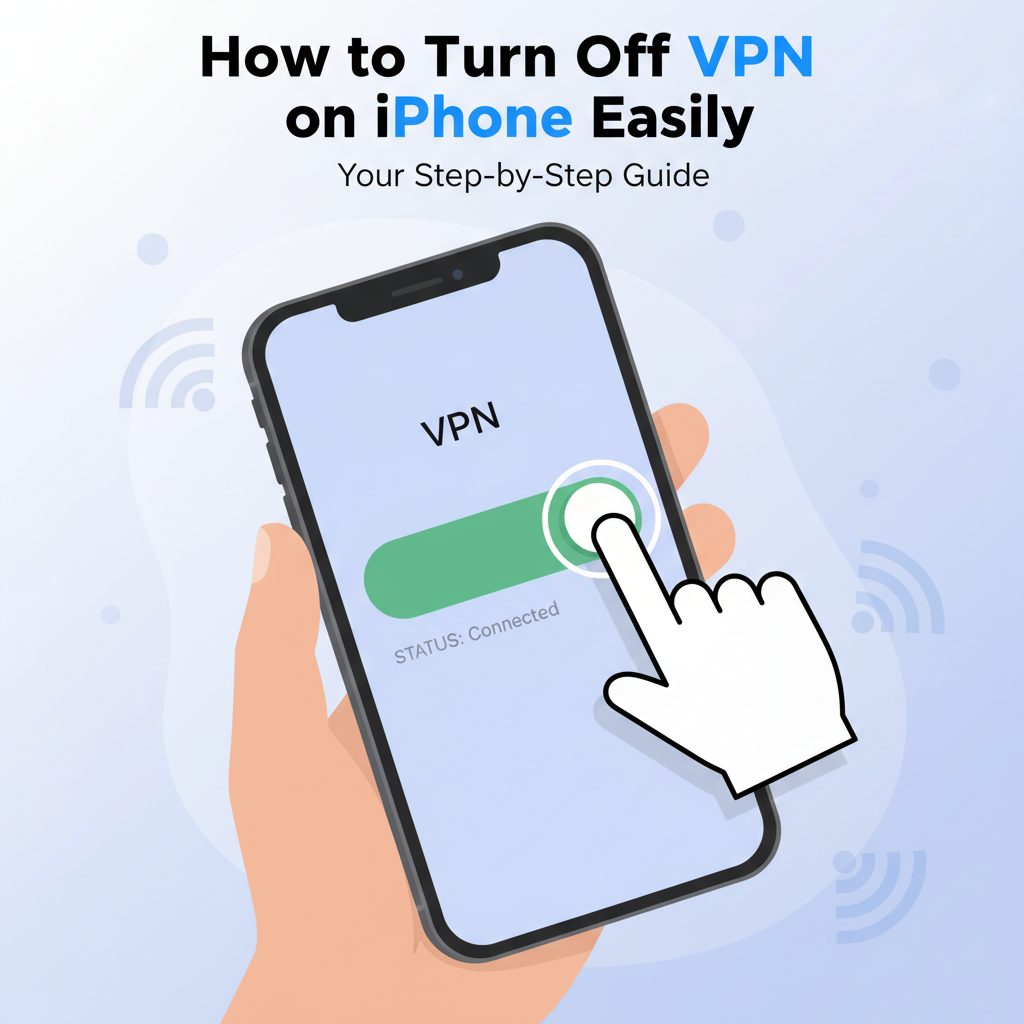
Many iPhone users activate VPNs for privacy or access, but sometimes you just need to turn it off. Whether for troubleshooting, saving battery, or switching networks, knowing how to quickly disable your VPN can be very useful. In this guide, we’ll show you step by step how to turn off a VPN on your iPhone and what happens when you do.
Step-by-Step Instructions to Disable VPN on Your iPhone
To disable a VPN on your iPhone, follow these step-by-step instructions to ensure the connection is turned off quickly and effectively. Begin by unlocking your iPhone and opening the Settings app. Scroll down until you see the VPN option, which typically appears in the main list or within the General section, depending on your version of iOS.
Tap on VPN to access the VPN configuration screen. Here, you will see a toggle switch next to the status of your VPN connection. If the switch is green and reads Connected, this means the VPN is currently active. To disable the VPN, simply tap the toggle switch so it turns off (usually from green to gray). Once you do this, your iPhone will disconnect from the secure VPN server, and you’ll return to your regular internet connection provided by your mobile carrier or Wi-Fi network.
When the VPN is off, your internet traffic is no longer encrypted nor routed through the VPN server. According to information from Wikipedia, VPNs serve to protect your privacy and mask your IP address. Disabling the VPN exposes your real IP address to websites and restores your default, unencrypted browsing experience. This means your data is more visible to your Internet Service Provider (ISP) and potentially vulnerable on public networks.
If you find the VPN won’t turn off or re-enables itself, check for installed profiles or device management settings under Settings > General > VPN & Device Management. Sometimes, third-party apps with VPN features automatically reconnect when disabled. To troubleshoot, delete unused VPN profiles or adjust the app’s auto-connect settings.
- Navigate to Settings
- Find and tap VPN or General > VPN & Device Management
- Use the toggle to disconnect the VPN
- If issues persist, inspect profiles or uninstall problematic VPN apps
Conclusions
Turning off your VPN on an iPhone is straightforward and can be done in just a few taps. This knowledge ensures you have greater control over your internet privacy and connection settings at any time, for any reason. Remember to turn your VPN on again when you need extra security or private browsing on your device.