

 Русский
 Bahasa Indonesia
 فارسی
فارسی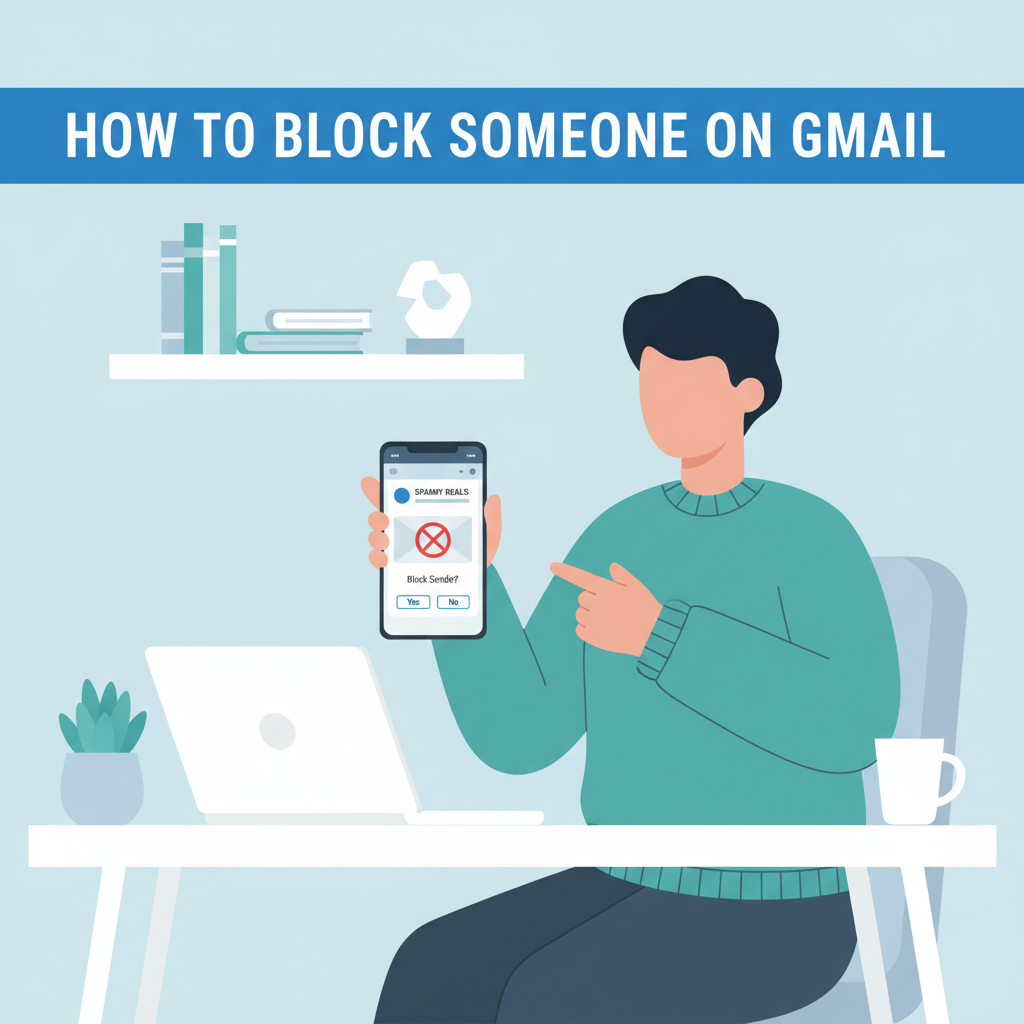
Receiving unwanted emails in your Gmail inbox can be frustrating and distracting. Knowing how to block specific senders helps keep your email organized and improves your online experience. In this article, you’ll discover a simple, effective method to block someone on Gmail and manage your inbox with ease.
Step-by-Step Instructions to Block a Sender in Gmail
To block a sender in Gmail, begin by logging into your Gmail account on your preferred device. On a desktop, navigate to your inbox where you’ll see a list of received emails. Open a message from the sender you wish to block. In the upper-right corner of the opened email is the three-dot icon, also known as the ‘More’ menu. Click this icon to access a dropdown menu with multiple options. Within this menu, locate and select ‘Block [Sender’s Name].’ Gmail will then prompt you to confirm your decision to block the sender. Once confirmed, any future messages from this email address will automatically be routed to your spam folder, and Gmail will notify you that the block is in place.
On mobile devices using the Gmail app, the steps are quite similar. Open the app and find the message from the sender you want to block. Tap to open the email, then look for the three-dot menu, usually found at the top-right or sometimes beside the sender’s information. Tap this, then select ‘Block [Sender’s Name].’ This process ensures that emails from the blocked sender are no longer visible in your primary inbox, helping you maintain a clutter-free and secure email environment.
If you ever wish to reverse this decision, simply open a message from the blocked sender, access the three-dot menu, and choose ‘Unblock [Sender’s Name].’ For additional email control, consider utilizing Gmail’s filter feature—this allows you to automatically archive, label, or delete messages based on specific criteria, offering a more customized solution than blocking alone.
Blocking gives you immediate privacy from persistent or unwanted messages, giving you more control over your digital communication. Whether you’re on desktop or mobile, Gmail’s blocking functionality is straightforward, helping you create a safer and more manageable inbox.
Conclusions
Blocking someone on Gmail is an efficient way to regain control of your inbox and reduce annoyance caused by unwanted messages. By following the steps outlined above, you can ensure a more organized, stress-free email experience and focus only on the messages that truly matter. Stay proactive in managing your digital communications.