

 Русский
 Bahasa Indonesia
 فارسی
فارسی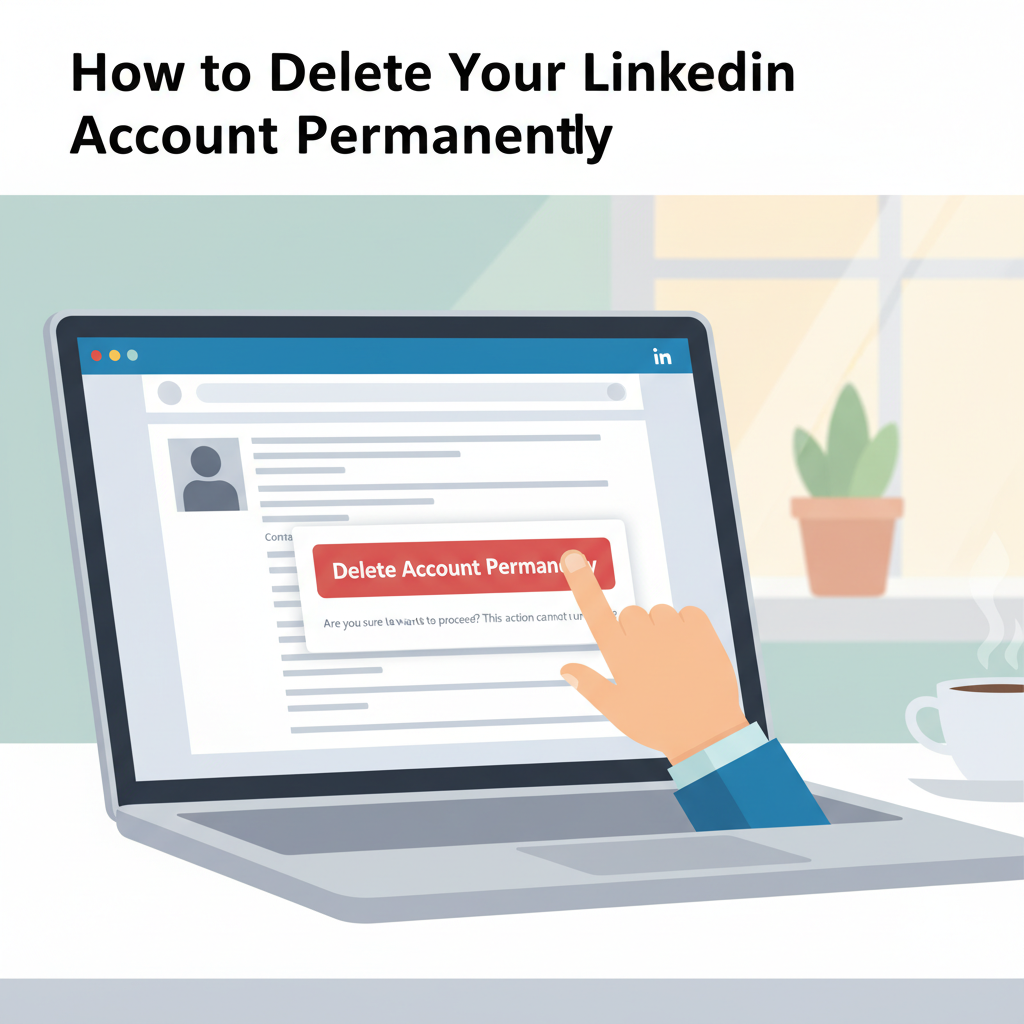
Thinking about stepping away from LinkedIn? This guide explains every step you need to fully delete your LinkedIn account. From understanding the implications to safely erasing your personal and professional data, you’ll learn how to take control of your digital footprint and protect your privacy. Let’s explore what you need to know before you hit delete.
Step-by-Step Process to Delete Your LinkedIn Account
Deleting your LinkedIn account is a significant decision, and it’s critical to follow the correct process to ensure your profile and data are permanently erased. Begin by signing in to your LinkedIn account on a web browser or through the mobile app. On the desktop site, click on your profile icon at the top, go to “Settings & Privacy,” and then select “Account Preferences.” Scroll down to find the “Close account” option. In the mobile app, tap your profile picture, select “Settings,” then “Account preferences,” and choose “Close account.” You will need to specify a reason for your departure and confirm your LinkedIn password for security purposes.
It’s important to understand that deactivation and deletion are not the same. Deactivation temporarily disables your profile, but retains your data; deletion is permanent removal of your profile and all associated content. Once you delete your account, your connections, endorsements, messages, and all your profile information will be erased and cannot be recovered.
Before proceeding, complete several essential tasks:
- Download your LinkedIn data — this includes posts, messages, contacts, and activity history. Go to “Settings & Privacy,” choose “Data privacy,” then “Get a copy of your data.”
- Remove third-party app connections — unlink any apps or services paired with your LinkedIn credentials under “Permitted services.”
- Notify important contacts if needed, especially if you use LinkedIn for business or networking.
- Update any logins on other platforms that use LinkedIn Single Sign-On.
Once the deletion process is confirmed, your profile becomes inaccessible immediately, but LinkedIn may take up to 30 days to fully erase your data from backup servers, according to their privacy documentation. Check your email for a final confirmation of deletion. Afterward, clear browser caches and revoke LinkedIn access in third-party password managers for additional privacy. Remember, search engines may cache your profile for a few weeks, but these traces eventually disappear.
Conclusions
Deleting your LinkedIn account is a straightforward process, but it’s essential to consider how this impacts your online presence and career networking options. Follow the steps carefully to ensure all your data is removed, and you can leave LinkedIn with confidence. Always remember to review your privacy options before making your final decision.