

 Русский
 Bahasa Indonesia
 فارسی
فارسی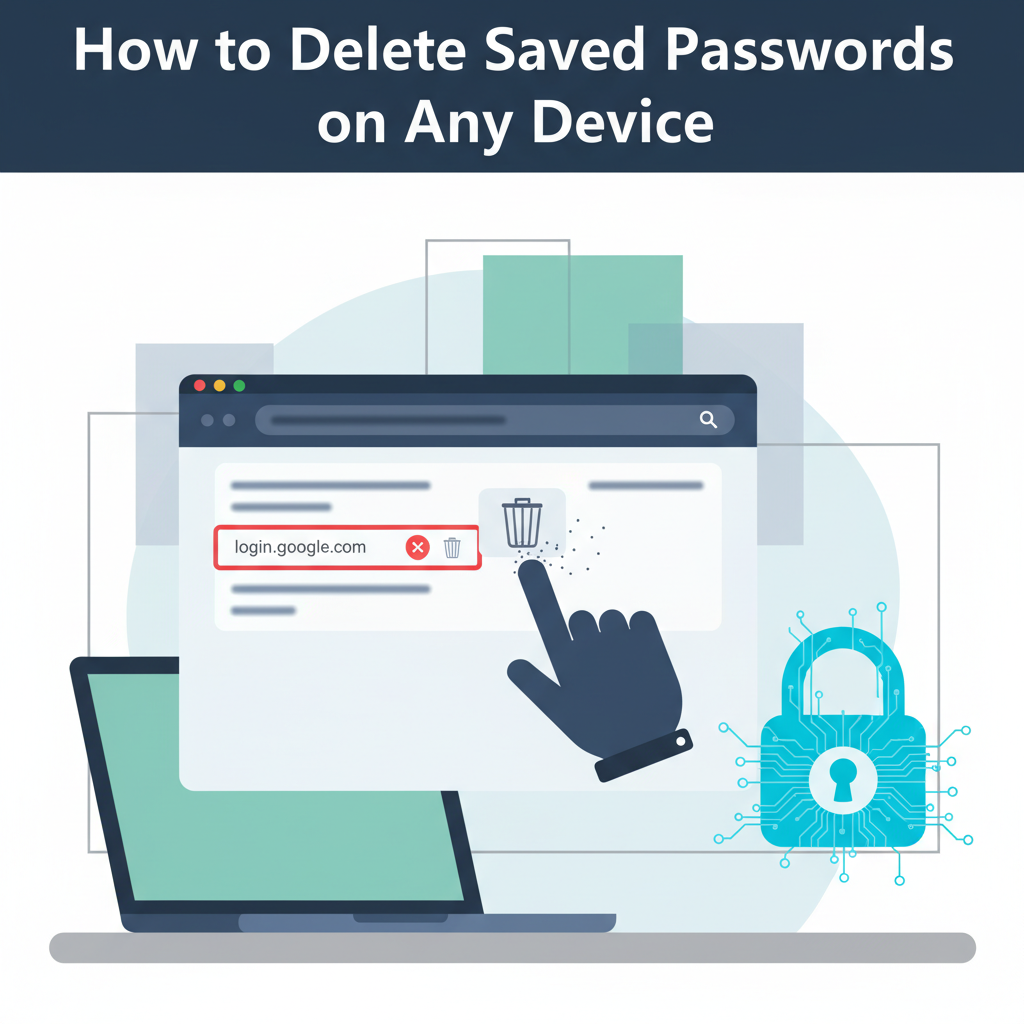
Saved passwords offer convenience, but they can also pose security risks if not properly managed. Learning how to delete stored passwords on your devices and browsers is essential to protect your privacy, especially when sharing devices or facing security concerns. In this article, we guide you through secure, step-by-step methods to remove saved passwords effectively.
Step-by-Step Instructions to Delete Saved Passwords
Follow these detailed, device-specific instructions to effectively delete saved passwords and strengthen your personal security. For users of Google Chrome, begin by clicking the three-dot menu in the upper right corner, select ‘Settings,’ then go to ‘Autofill’ and choose ‘Passwords.’ Here, you’ll find a list of saved credentials. Click the three dots next to each password and select ‘Remove’ to delete individual entries, or use ‘Clear browsing data’ and check ‘Passwords’ to erase them all at once. In Mozilla Firefox, open the menu, select ‘Settings,’ then click ‘Privacy & Security’ and scroll to ‘Logins and Passwords.’ Use ‘Saved Logins’ to view stored credentials, where you can remove individual entries or click ‘Remove All’ for bulk deletion.
On Microsoft Edge, access ‘Settings’ from the menu, navigate to ‘Profiles,’ and click on ‘Passwords.’ Each saved item can be deleted individually, or you can clear them all through ‘Clear browsing data.’ In Safari on macOS, open ‘Preferences,’ go to ‘Passwords,’ authenticate, then select the sites and hit the ‘Remove’ button.
For Windows systems, launch the ‘Credential Manager’ from the Control Panel where you can view and delete credentials under ‘Web Credentials’ and ‘Windows Credentials.’ On Android devices, go to device settings, find ‘Google,’ tap ‘Manage your Google Account,’ then ‘Security’ and ‘Password Manager,’ where individual or grouped credentials can be removed. iOS users can open ‘Settings,’ tap ‘Passwords,’ then swipe left to delete individual entries or use ‘Edit’ for bulk removal.
Remember, after deleting saved passwords, the credentials are no longer accessible for autofill or account recovery through your device, so ensure you have alternate copies where needed. Routinely deleting old or unused passwords limits exposure to security breaches. Always verify password removal by revisiting the relevant settings page and, as a safeguard, consider restarting the browser or device. Also, think about enabling two-factor authentication or using a reputable password manager to balance convenience and security in the future.
Conclusions
By regularly deleting saved passwords, you reduce your exposure to potential cyber threats and increase your personal privacy. Keeping only necessary login details and removing outdated or unused credentials ensures your sensitive information remains secure. Make password management a routine part of your digital hygiene to safeguard personal data and maintain control over your online accounts.