

 Русский
 Bahasa Indonesia
 فارسی
فارسی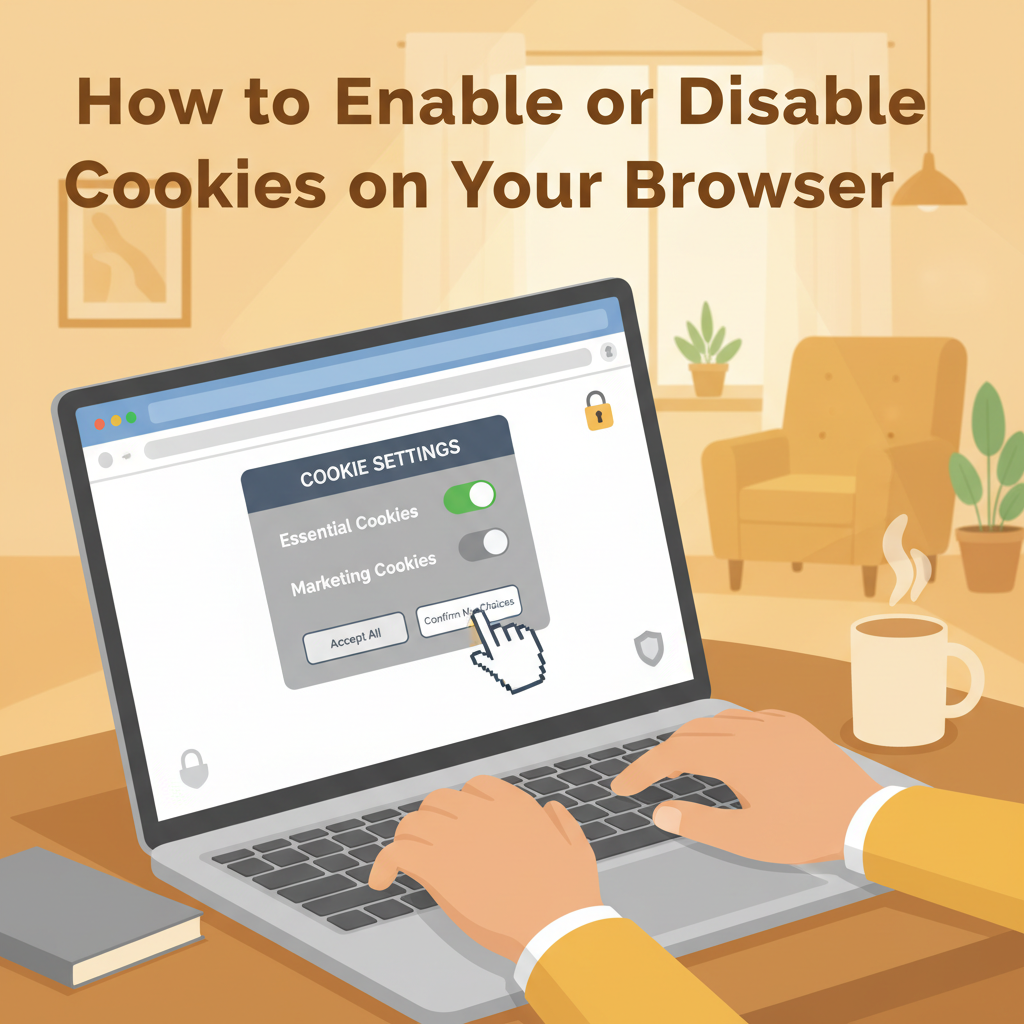
Cookies play a crucial role in personalizing your web browsing experience, storing preferences, and enabling websites to function efficiently. However, managing cookies wisely is essential for safeguarding privacy and controlling personal data. In this article, you’ll learn step-by-step methods to enable or disable cookies in popular browsers and understand the effects of these choices.
Managing Cookies on Popular Browsers
Managing cookies effectively on your browser involves understanding exactly where to find the relevant settings and how to make changes tailored to your needs. Each major browser gives users control over cookies, but the steps vary, and the implications of your decisions can impact privacy, personalization, and website reliability.
On Google Chrome, click the three-dot menu at the top right, select Settings, then go to Privacy and security and choose Cookies and other site data. Here, you can allow all cookies, block third-party cookies, block all cookies, or set custom settings for specific sites. Remember to click Save or the back arrow to apply your changes. Disabling cookies may restrict your access to some features or require you to log in repeatedly.
Mozilla Firefox users can access settings by clicking the three horizontal lines, then Settings > Privacy & Security. In the Cookies and Site Data section, you can choose between Standard, Strict, or Custom privacy, with options ranging from allowing to blocking all cookies. Be sure to review the consequences: some sites may not work as intended with strict settings.
In Safari (on Mac), open Preferences from the Safari menu, then choose Privacy. Here, checking Block all cookies disables cookies entirely, while unchecking it allows them. Disabling cookies can affect logins and e-commerce shopping carts.
Microsoft Edge users go to the three-dot menu, select Settings, then Cookies and site permissions > Manage and delete cookies and site data. Toggle between allowing, blocking all, or blocking third-party cookies.
Opera users open Settings, select Advanced > Privacy & Security > Site settings > Cookies and site data, and adjust as needed.
Balancing usability and privacy is key: allowing cookies enhances personalization and convenience, while stricter settings limit tracking but could disrupt some website functions (Google Support, Mozilla Support, Apple, Microsoft, Opera). Always review site-specific settings for sensitive activities and periodically revisit your choices to remain in control of your data.
Conclusions
Managing cookies effectively is vital for balancing convenience and privacy online. By following the steps provided in this guide, you can easily customize your cookie settings on any browser. This empowers you to enjoy a more secure and personalized browsing experience, keeping your data as private or open as you prefer. Stay informed and make smart decisions regarding your online privacy.