

 Русский
 Bahasa Indonesia
 فارسی
فارسی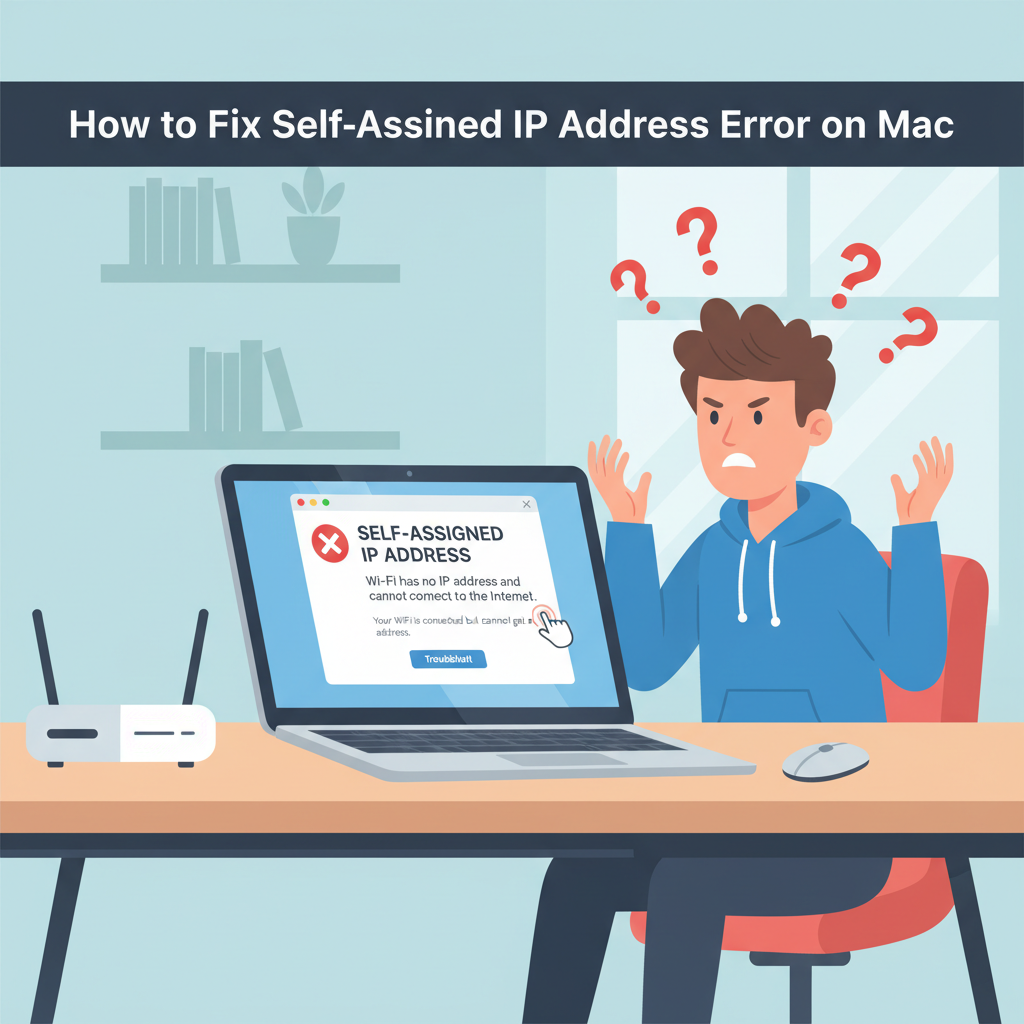
If your Mac displays a self-assigned IP address and refuses to connect to the internet, you’re facing a common yet frustrating issue. This error restricts your network access, but there are proven ways to fix it. In this guide, we’ll walk you through effective troubleshooting steps to restore your Mac’s connectivity quickly and reliably.
Troubleshooting and Fixing Self-Assigned IP Address Errors
A self-assigned IP address error occurs when your Mac cannot communicate properly with the DHCP server (usually your router) to obtain a valid network address, resulting in your computer assigning itself an address beginning with 169.254.x.x. In this state, your Mac may appear connected to Wi-Fi or Ethernet, but you won’t actually have internet access. This issue typically originates from a network communication breakdown, which could stem from configuration conflicts, DHCP server malfunctions, physical cable problems, or outdated system software.
To address this error systematically, begin by restarting both your Mac and your router—simple reboots can resolve many temporary glitches. If the issue persists, try renewing your DHCP lease. Go to System Settings > Network, select your connection, click on Details, and then choose “Renew DHCP Lease.” Often, this refreshes your network parameters and restores connectivity.
If DHCP lease renewal doesn’t work, consider deleting and re-adding your network location. Open System Settings > Network, click on the menu for your active network, and choose “Locations.” Add a new network location and reconnect to your Wi-Fi or Ethernet, as this resets potential misconfigurations tied to your old network profile.
Faulty cables can trigger self-assigned IP errors for Ethernet users, so check and reseat both ends or swap in a different cable. Software issues and corrupted preferences are also common culprits. Try resetting the SMC (System Management Controller) and NVRAM, as these resets can clear low-level configuration problems that sometimes lock network hardware in a faulty state.
Always make sure your macOS is updated, as recent software releases often include fixes for networking bugs. As a final measure, you can safely reset your Mac’s network preferences by deleting related preference files from the /Library/Preferences/SystemConfiguration/ folder, then rebooting. After each fix, reconnect to the network and verify your Mac receives a valid IP address. Testing after every step narrows down the cause and helps you avoid unnecessary changes.
Conclusions
Resolving the self-assigned IP address error on your Mac is essential for restoring seamless network connectivity. By methodically following troubleshooting steps—such as resetting your network preferences, updating software, and checking router settings—you can often fix the issue yourself. Addressing these problems promptly helps maintain a stable internet connection and ensures smooth online experiences on your Mac.