

 Русский
 Bahasa Indonesia
 فارسی
فارسی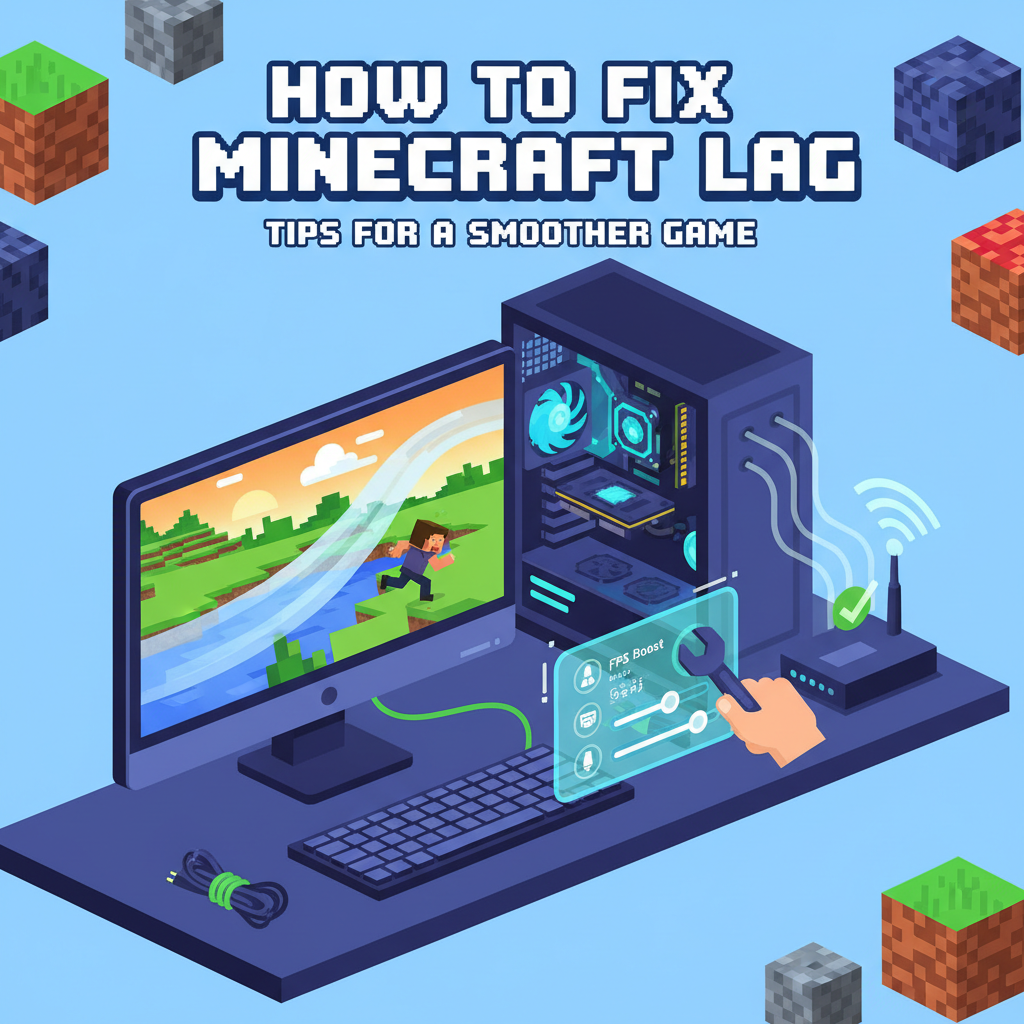
Experiencing lag while playing Minecraft can be incredibly frustrating, disrupting your adventures and creativity. Lag occurs for several reasons, such as hardware issues, network problems, or incorrect game settings. In this article, we’ll explore effective strategies to fix Minecraft lag, ensuring you achieve a smoother and more enjoyable gameplay experience.
Step-by-Step Solutions to Reduce Minecraft Lag
- Optimize Your Hardware: One of the leading causes of lag in Minecraft stems from hardware limitations. Consider upgrading your system’s RAM; Minecraft can be especially demanding, so moving from 4GB to 8GB—or higher—can yield substantial improvement, especially when running mods or large worlds. If using an older graphics card, a modern dedicated GPU can dramatically enhance rendering speed and visuals. Don’t overlook routine maintenance: physically cleaning dust from your PC reduces overheating and throttling, and keeping your drivers, particularly for your graphics and network hardware, up to date ensures compatibility and higher performance.
- Adjust In-Game Settings: For significant lag reduction, lower the render distance—this can have a dramatic impact on frame rates and world loading times, especially in larger or more complex maps. Reduce graphics settings such as turning off fancy graphics, decreasing particles, and disabling smooth lighting. If playing on a lower-end computer, change the game to ‘Fast’ graphics. Disabling V-Sync and clouds can further boost performance.
- Internet Connection Matters: In multiplayer, connection quality is critical. A wired (Ethernet) connection is always preferable to Wi-Fi for its stability and speed. Ensure no large downloads or streaming are running in the background, and close bandwidth-heavy applications. Use websites to check your upload and download speeds; low or inconsistent speeds can cause severe lag.
- Update and Maintain Software: It’s vital to keep Minecraft and all installed mods updated, as developers frequently optimize performance and patch bugs. Outdated mods can cause significant lag, especially if they conflict with one another or with the latest Minecraft version. Look out for official updates and always verify mod compatibility.
- Troubleshoot Server and Multiplayer Issues: For multiplayer, server-related lag may be outside your control—high server populations, misconfigured plugins, or an overloaded host can all contribute. Check server status and, if necessary, try a less populated server. For persistent problems, seek help via the official Minecraft support site, which offers troubleshooting tools and forums where common issues and solutions are regularly discussed.
Conclusions
Solving Minecraft lag involves optimizing your hardware, settings, and network while keeping your game updated. By following the outlined steps, you can enjoy a lag-free Minecraft experience, whether exploring, building, or battling mobs. Prioritize these fixes for smoother gameplay, enhanced performance, and more fun in your Minecraft world.