

 Русский
 Bahasa Indonesia
 فارسی
فارسی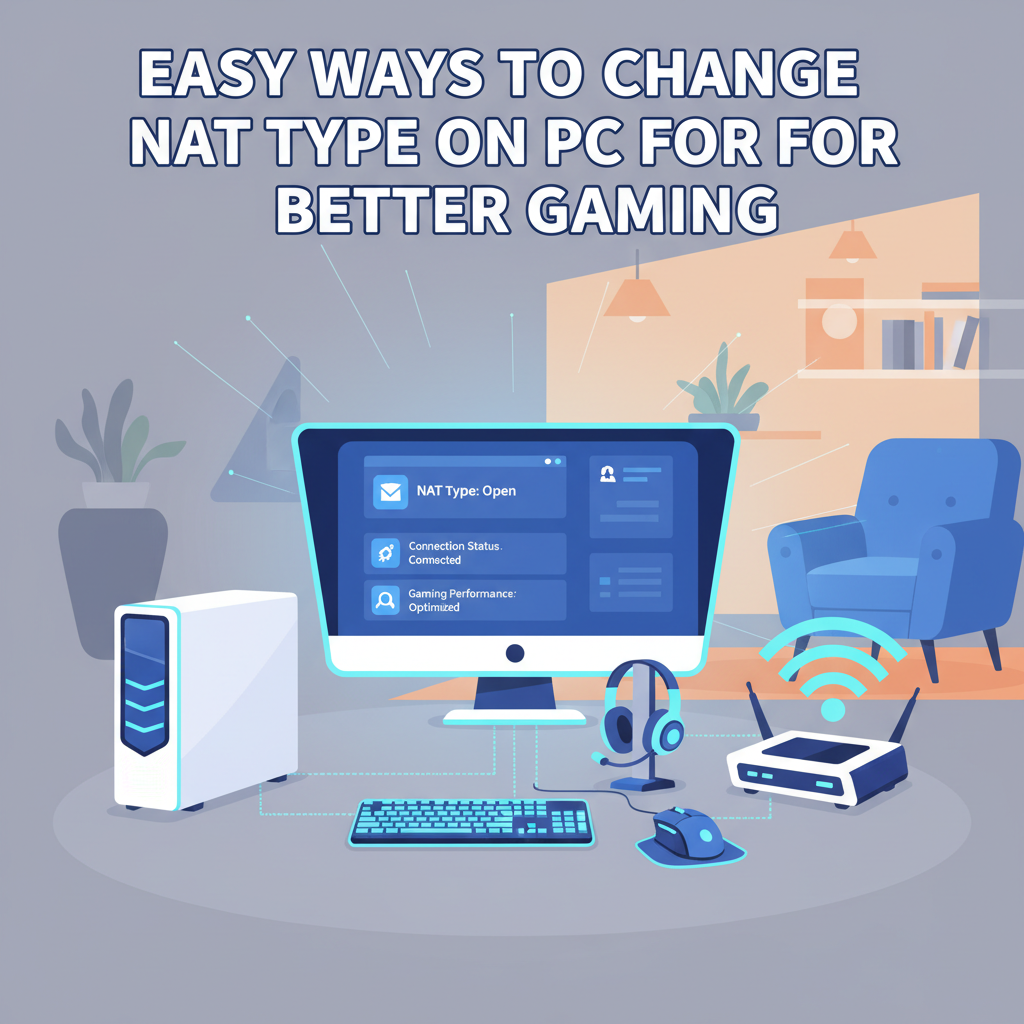
Struggling with unstable connections or lag in online games on your PC? Your NAT type could be the culprit. This article explains what NAT type is, why it matters for your online experience, and walks you through proven methods to change and optimize your NAT type for smoother, more reliable gaming and connectivity.
Understanding and Changing NAT Type on Your PC
Network Address Translation (NAT) type is a vital part of your PC’s internet connectivity, especially when you’re gaming or using peer-to-peer applications. NAT is a method used by routers to translate the private IP addresses of your devices to the public IP address used on the internet (source: Wikipedia). Your NAT type can be Open, Moderate, or Strict; each determines how freely your device communicates online. An Open NAT allows your PC to connect without restrictions, supporting smooth matchmaking and voice chat. Moderate NAT can connect to both Open and Moderate peers but may struggle with Strict peers and sometimes limit multiplayer features. A Strict NAT heavily restricts connectivity, often resulting in long matchmaking times, failed voice chats, and inability to host games.
Restrictive NAT can be caused by misconfigured routers, double NAT scenarios (such as multiple routers or gateways on one network), ISP-imposed limitations, or stringent firewall rules. To improve your NAT type, begin by checking your current NAT status: in Windows, use Xbox Networking (Settings > Gaming > Xbox Networking) to see your NAT classification.
Next, log in to your router’s admin panel—usually by entering its IP address in your browser. Enable Universal Plug and Play (UPnP) to allow automatic port management. If that doesn’t help, configure port forwarding for your game or service—refer to official game documentation for required ports and enter them in your router’s Port Forwarding section.
Advanced users can use a Demilitarized Zone (DMZ) by assigning your PC to bypass security controls, but this exposes it directly to the internet. Always weigh the security risk: this should only be temporary for troubleshooting. Adjust your Windows firewall to allow the game or app, and if double NAT is detected, bridge your modem or set one router to bridge mode.
After changing settings, retest your NAT status using Windows or in-game network diagnostics. Always secure your network with strong router passwords and minimize DMZ/UPnP use when possible for better safety.
Conclusions
Mastering your NAT type can significantly boost your online gaming performance and fix connection troubles. By understanding and applying the right techniques—such as configuring your router or using advanced network settings—you’ll enjoy faster, more stable connections on your PC. Take charge of your NAT type and level up your online experiences.