

 Русский
 Bahasa Indonesia
 فارسی
فارسی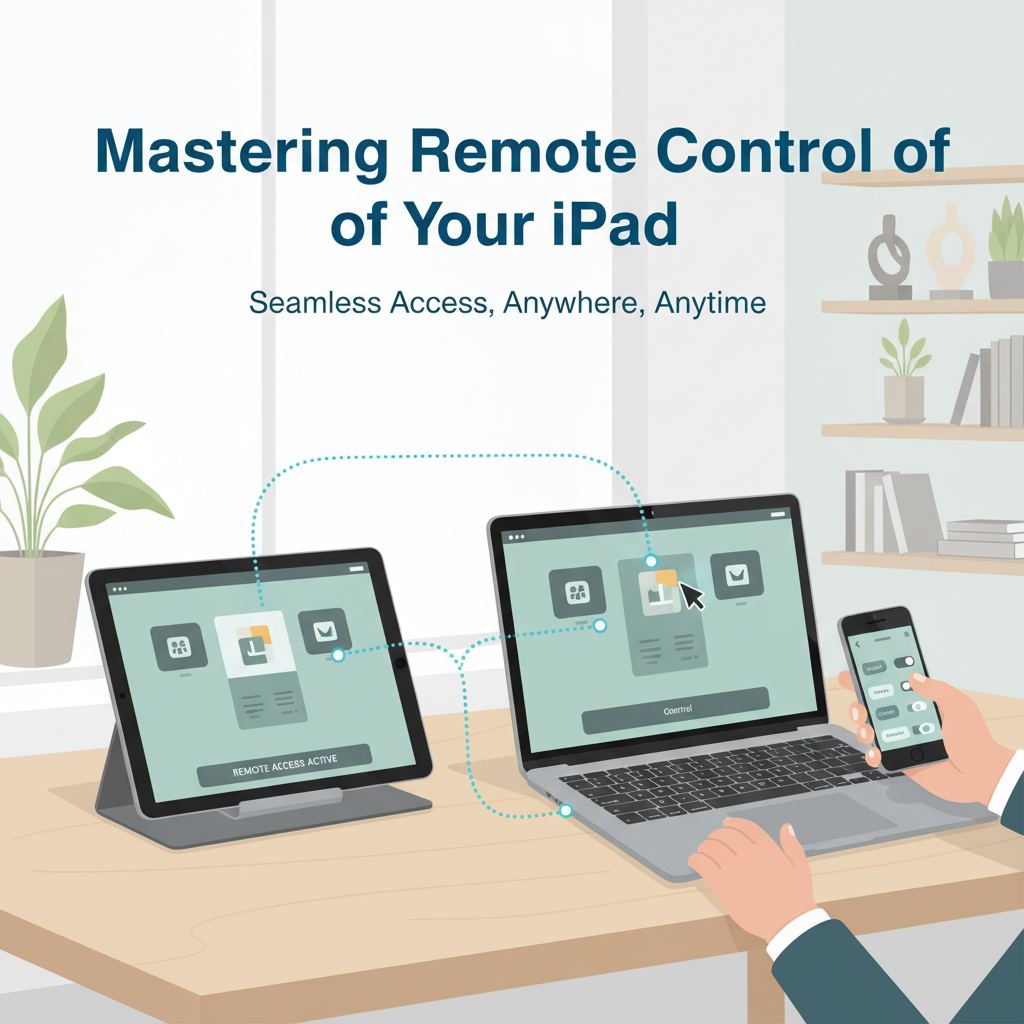
Remote control of your iPad—whether for technical support, education, or convenience—can unlock new possibilities for productivity and accessibility. In this guide, we’ll explore reliable methods and essential tools to remotely access and control an iPad securely and efficiently. Discover how to make the most of your device, wherever you are.
Tools and Methods for Remote iPad Control
To efficiently control an iPad remotely, users can rely on several robust tools and methods that cater to diverse needs, ranging from accessibility to technical support across different environments. One of Apple’s integrated solutions, Switch Control, is primarily designed for accessibility, allowing a supervising device—such as another iOS device or Mac—to direct the iPad’s interface. Setting up requires enabling Switch Control in the iPad’s accessibility settings and trusting the controlling device on the same Wi-Fi network, making it a seamless way for caregivers or educators to assist users without physical contact.
When it comes to professional or technical scenarios, third-party remote desktop apps are invaluable. TeamViewer QuickSupport is widely used in enterprise environments, enabling screen sharing, guidance, and some management capabilities once the app is installed and both devices are connected. Although direct control is limited due to iOS restrictions, it’s still a great asset for remote troubleshooting and instruction. Chrome Remote Desktop is another cross-platform option; while it primarily allows access from iPads to computer desktops, it is suitable when your workflow requires hopping between iPad and computer devices seamlessly.
iCloud enhances remote management through services like Find My, enabling you to locate and lock or erase your iPad if needed, supporting heightened peace of mind for both personal and organizational users. Network stability is crucial: ensure a reliable, high-speed Wi-Fi connection, and take extra precautions to use only secured and private networks to shield your devices from interception.
Always activate two-factor authentication, manage app and service permissions carefully, and generally follow Apple’s official security guidelines. Grant access only to users you trust, routinely monitor active sessions through your Apple ID, and keep all software up to date to maximize both functionality and protection, whether you’re offering assistance to a family member or deploying iPads in managed, collaborative environments.
Conclusions
Learning how to control your iPad remotely empowers you to assist others, troubleshoot issues, or access your device from anywhere. By choosing the right tools and following Apple’s security guidelines, you can maximize this functionality safely. Embrace remote access to make your iPad even more versatile and responsive to your needs.