

 Русский
 Bahasa Indonesia
 فارسی
فارسی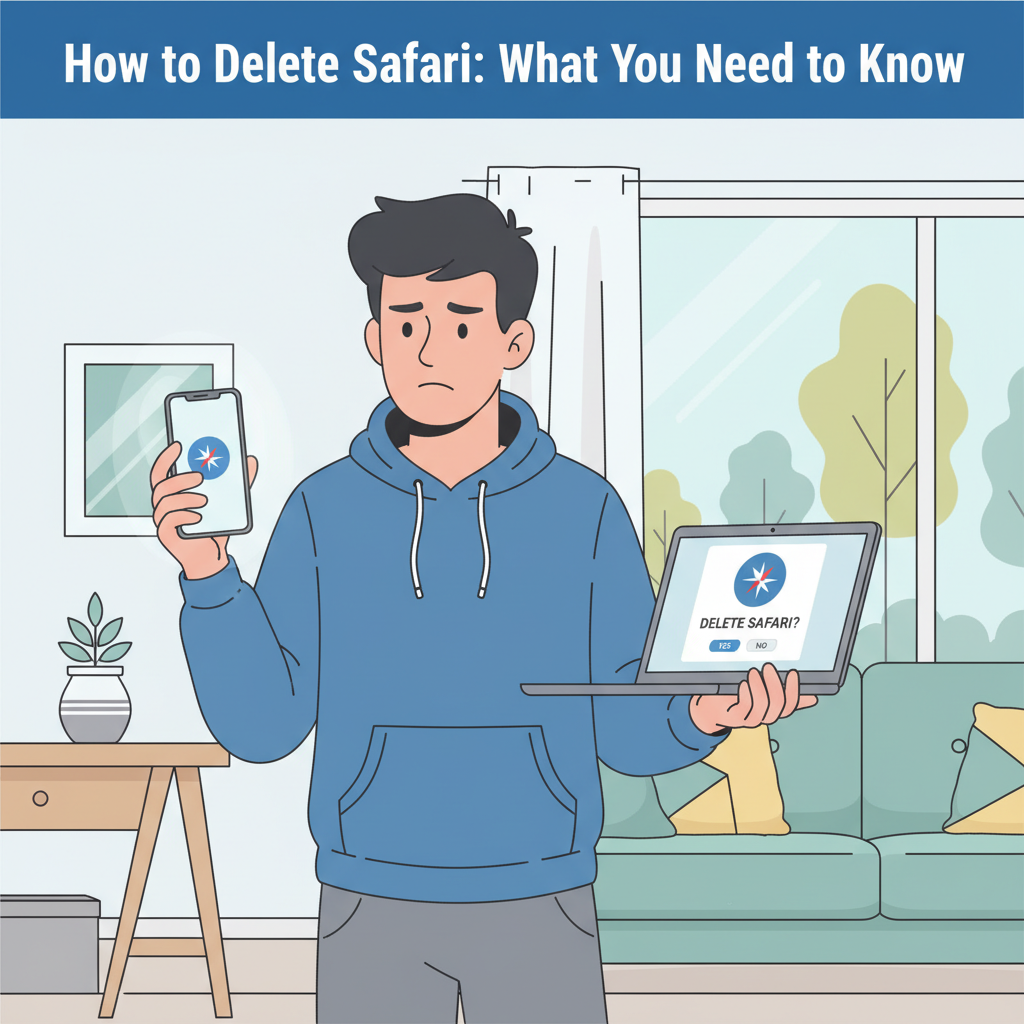
Safari is Apple’s default web browser and comes pre-installed on all iPhones, iPads, and Macs. Many users wonder if Safari can be removed or replaced with another browser. In this guide, we’ll examine your options for deleting or disabling Safari, and discuss safe alternatives for browsing the internet across Apple devices.
Understanding Safari’s Role and How to Remove or Disable It
Safari is more than just a browser on Apple devices; it’s an integrated component of iOS, iPadOS, and macOS that supports a range of system features, including secure Keychain autofill, Handoff, and Siri Suggestions. According to Apple’s official documentation and widely cited resources like Wikipedia, Safari is deeply embedded in Apple’s operating systems for performance optimization and security. This system-level integration means that Safari cannot be fully deleted from any iPhone, iPad, or Mac. The operating system relies on Safari’s underlying WebKit engine for many apps, ensuring both speed and safety across web content.
Though complete removal is impossible, you can limit Safari’s visibility and use. On iPhone and iPad, the simplest option is to remove Safari from the Home Screen: press and hold the Safari icon until a menu appears, choose “Remove App,” and then “Remove from Home Screen.” This hides Safari but keeps it installed. For stronger restrictions, leverage Screen Time. Go to Settings > Screen Time > Content & Privacy Restrictions > Allowed Apps, then toggle off Safari. This will disable Safari entirely, and it won’t show up anywhere on the device.
On macOS, while you cannot uninstall Safari, you can disable its prominence by dragging it out of your Dock or restricting its access with parental controls or third-party utilities. If you prefer to use another browser, Apple now allows you to set alternatives like Chrome or Firefox as your default on both iOS/iPadOS and macOS. Visit Settings > [Browser] > Default Browser App on iOS/iPadOS or System Settings > Desktop & Dock > Default web browser on Mac.
When switching browsers, consider privacy and data synchronization. Apple’s privacy model is robust, so review privacy policies for any new browsers. Most browsers offer import features for bookmarks, open tabs, and saved passwords, letting you transfer your data seamlessly. Carefully manage synchronizations and data exports to ensure nothing critical is lost during your transition. Remember, disabling or hiding Safari doesn’t erase your browsing data — clear Safari’s history and cache separately for privacy. These best practices help you assert more choice over your browsing experience within the boundaries Apple sets.
Conclusions
While you cannot fully delete Safari from your Apple devices due to system restrictions, you can disable or hide it and set another web browser as your default. Understanding your alternatives allows you to tailor your browsing experience while preserving system stability. Always make sure your browsing habits remain secure, regardless of the browser you choose to use.