

 Русский
 Bahasa Indonesia
 فارسی
فارسی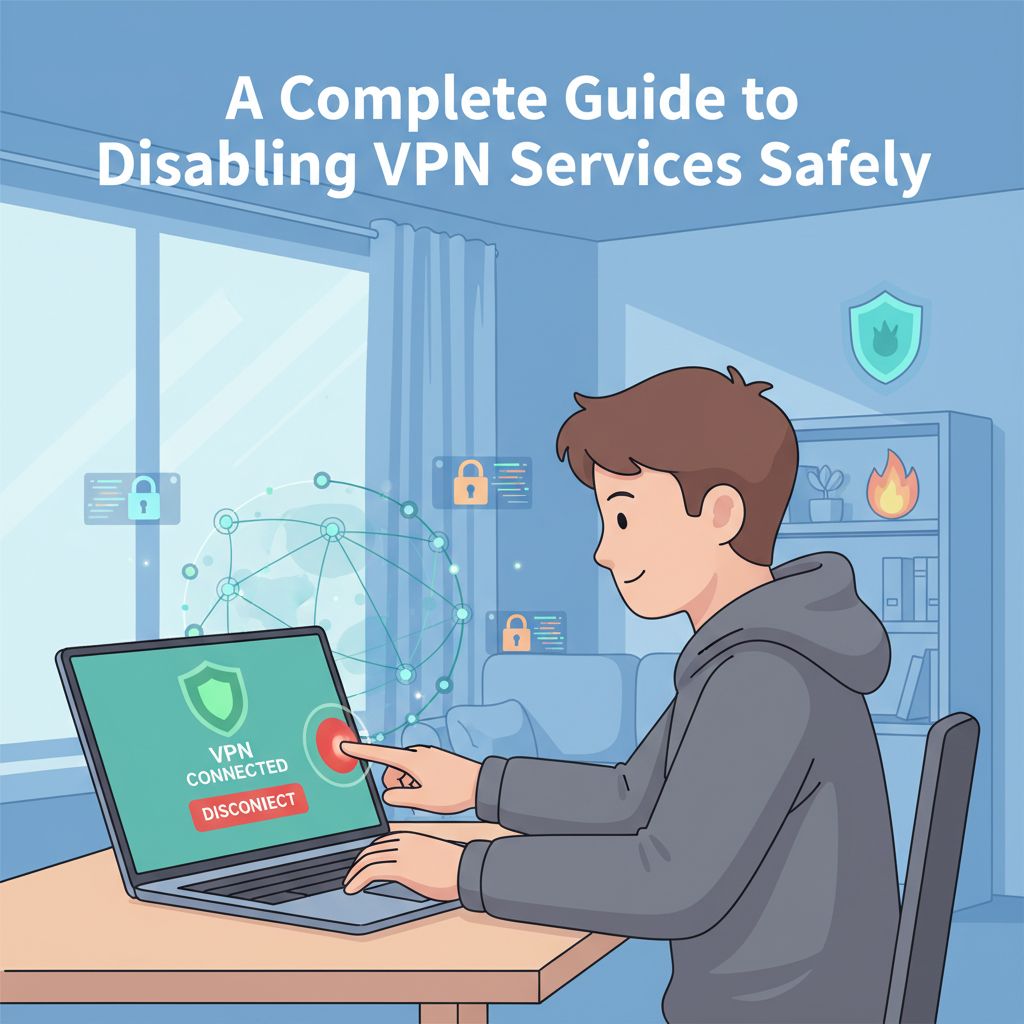
Disabling your VPN can be a straightforward process, but it’s important to follow the right steps for your device to ensure your connection remains secure and private. This article explores the best practices for safely turning off your VPN, discusses reasons why you might need to do so, and offers clear, step-by-step instructions tailored to different platforms.
Step-by-Step Instructions to Disable Your VPN
Disabling a VPN service is a straightforward process, but the exact steps can differ depending on your device and how you connect. The most common and secure way is through your VPN app. Simply open the application, and look for a prominent “Disconnect” or “Turn Off” button. Confirm if prompted. Most modern VPN providers like ExpressVPN, NordVPN, or CyberGhost ensure the process is quick, and your real IP is restored instantly after disconnection.
On Windows, you may also turn off a VPN from system settings. Go to Settings > Network & Internet > VPN, select your VPN connection, and hit “Disconnect.” If you’ve configured a manual VPN through Windows, ensure you disconnect here, not just in the app, to avoid leaks (source: Microsoft Support).
For macOS, open System Preferences > Network, choose the VPN on the sidebar, then click “Disconnect.” For manually configured connections, double-check you’ve exited all VPN-related apps.
On Android, swipe down the notification shade and tap the active VPN notification to disconnect. For system-level or built-in VPNs, navigate to Settings > Network & Internet > VPN and disconnect from there.
In iOS, open Settings > General > VPN & Device Management > VPN, then toggle the VPN switch off. Alternatively, use the app’s inbuilt disconnect option for the cleanest result.
For VPN browser extensions, open the extension from your browser’s toolbar (such as Chrome or Firefox), and click “Disconnect” or toggle the switch off. Remember, browser extensions only tunnel traffic from that browser, not your whole device.
Common reasons for disabling a VPN include troubleshooting network issues, accessing geo-restricted local content, or improving connection speed. However, be aware that disconnecting your VPN exposes your IP address and data to your ISP and public networks. Always reconnect when privacy is required, and check for persistent connections using services like ipleak.net after each change to verify your status (sources: VPN provider help centers, Microsoft and Apple support documentation).
Conclusions
Disabling a VPN properly helps maintain your digital privacy while addressing network or access issues. By following the secure and device-specific steps explained in this guide, you can confidently turn off your VPN service when needed, ensuring a smooth transition and maintaining control over your internet connection. When security or privacy is crucial, you can always reactivate your VPN as needed.