

 Русский
 Bahasa Indonesia
 فارسی
فارسی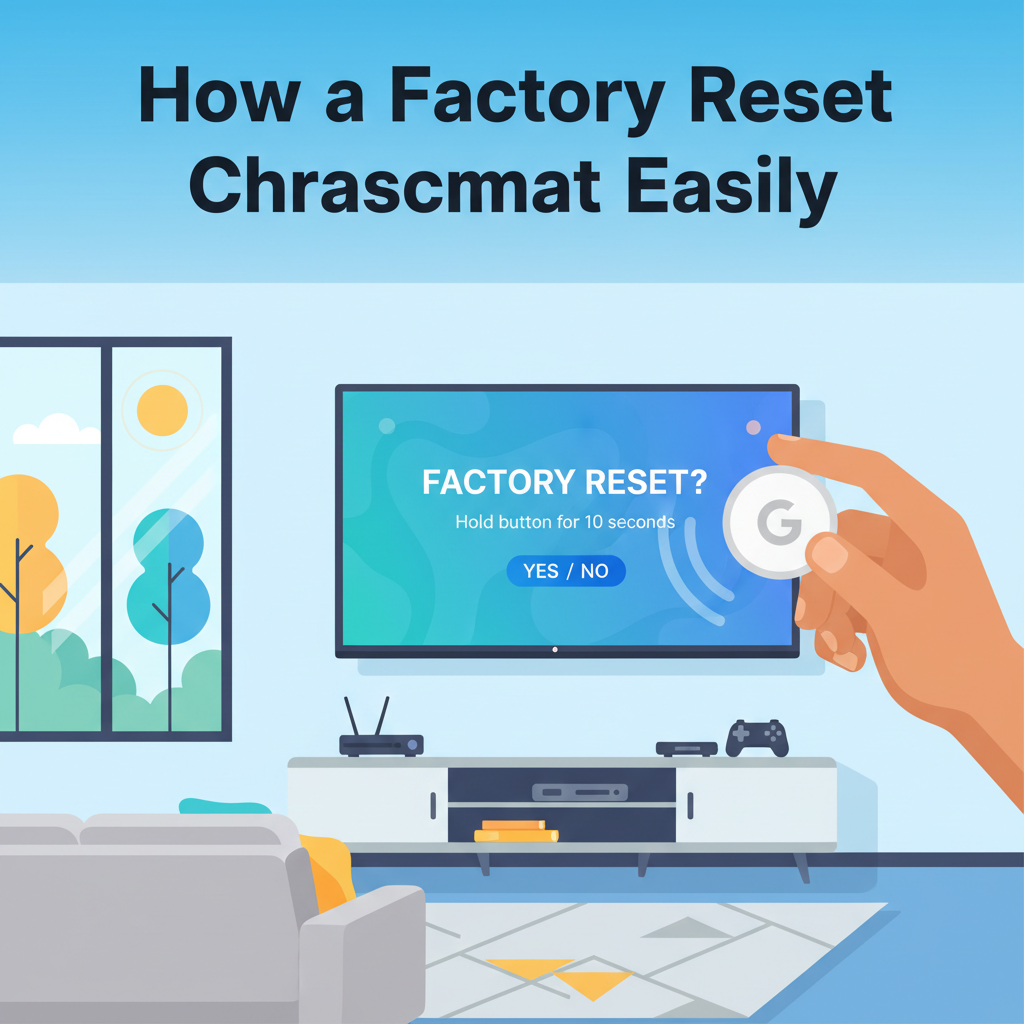
Whether your Chromecast is acting up, you’re preparing to sell it, or simply want a fresh start, knowing how to factory reset your Chromecast is crucial. This guide walks you through every step and consideration, providing all the details needed to confidently restore your device to its original settings.
Step-by-Step Instructions to Factory Reset Your Chromecast
To factory reset your Chromecast, you can choose between two primary methods: using the physical reset button on the device or performing the reset via the Google Home app on your mobile device. Each option offers a straightforward path, but the specific process varies depending on your Chromecast model.
For all Chromecast generations and Chromecast Ultra, the physical reset button is located near where the power cable plugs into the dongle. With the Chromecast powered up and connected to your TV, press and hold this button. After about 25 seconds, the LED will change color—typically flashing orange and then solid white—indicating the device is restarting and erasing its data.
Chromecast with Google TV features a round reset button on the back, beneath the HDMI output. Press and hold this button while the device is plugged in, until you see the LED start to blink. Once it turns solid white, release the button. The Chromecast will reboot, restoring itself to factory defaults.
Alternatively, within the Google Home app, select your Chromecast device, tap the gear icon for settings, scroll down, and select “Factory reset.” Confirm your choice when prompted. This erases network information, all personalized settings, and disconnects streaming accounts.
If your Chromecast is unresponsive or you are having Wi-Fi connectivity issues, a factory reset often resolves persistent glitches, but remember it will remove all Wi-Fi credentials and unlink any connected Google or streaming accounts. After resetting, you’ll need to repeat the initial setup steps: reconnect to Wi-Fi, re-link any personal accounts, and customize your preferences.
Before passing your Chromecast to a new user, always perform a factory reset to ensure your app logins, browsing history, and account information are fully removed, protecting your privacy and security.
Conclusions
Factory resetting your Chromecast is a straightforward process that ensures any glitches are resolved and your data is wiped for a fresh start. By following these steps, you can quickly get your device back to its default state, making it ready for new setups or a change of ownership. Properly resetting helps maintain performance and privacy.