

 Русский
 Bahasa Indonesia
 فارسی
فارسی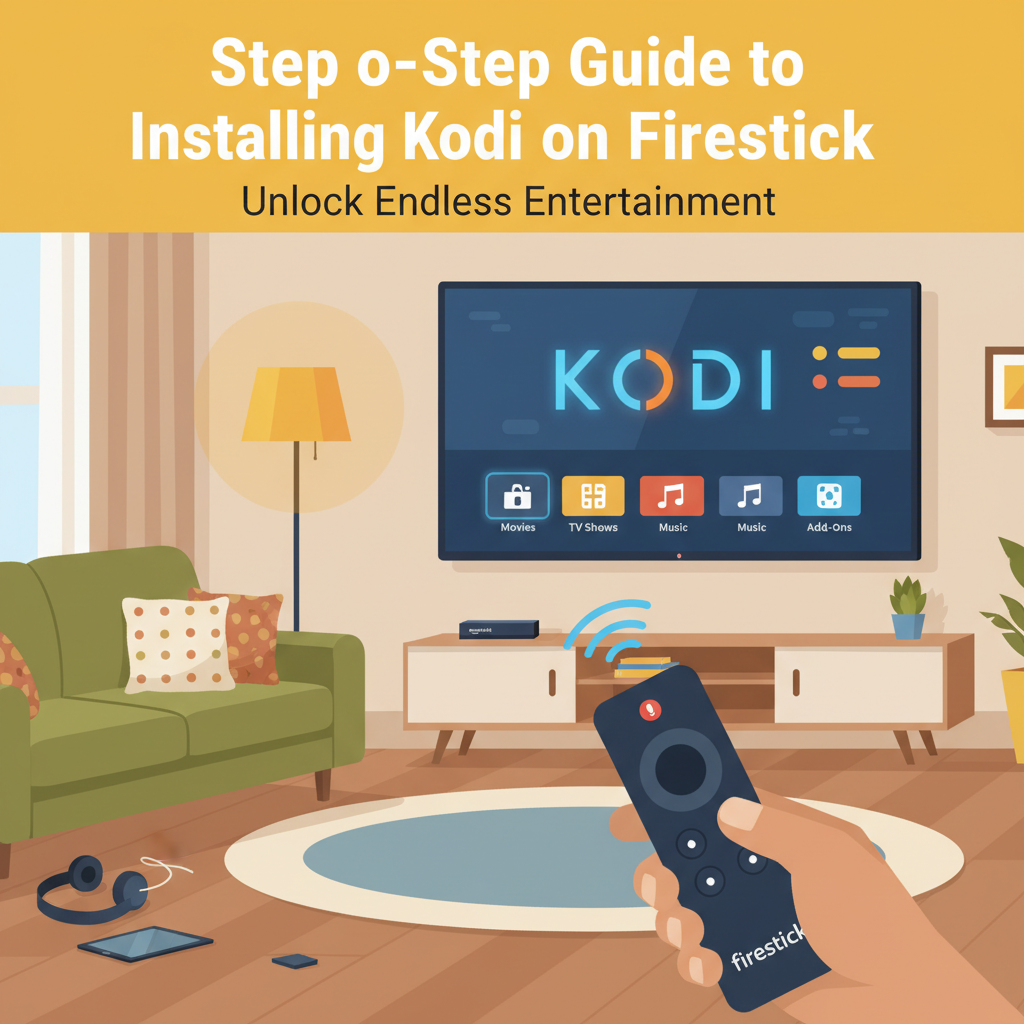
If you want to transform your Amazon Firestick into a powerful media hub, installing Kodi is a great move. Kodi allows access to a vast world of streaming content, providing flexibility and customization. In this guide, you’ll learn how to safely and efficiently install Kodi on your Firestick, making the most of your device’s capabilities.
The Complete Method to Install Kodi on Firestick
Before installing Kodi on your Firestick, it’s essential to prepare the device to accept third-party applications. Begin by navigating from the Fire TV home screen to the “Settings” menu. Select “My Fire TV,” then “Developer Options.” Here, enable the “Apps from Unknown Sources” toggle. This action allows you to install applications that aren’t available on the Amazon Appstore, a necessary step for installing Kodi since it is not natively listed.
Next, return to the home screen and use the search function to find the “Downloader” app. Select it from the search results and press “Download” or “Get” to install it on your device. Downloader is a utility app which lets you download files directly from URLs, crucial for fetching the Kodi APK.
Once Downloader is installed, launch the app and accept any permission prompts necessary for storage and network access. In the Downloader’s home screen, you’ll see an address bar; enter the official Kodi website URL: “https://kodi.tv/download”. Navigate within the Kodi website to select the Android version, then “ARMV7A (32bit),” as it is best suited for Firestick devices. The download will begin automatically.
As soon as the APK download completes, a prompt will appear to start the installation. Select “Install” and wait as Firestick processes and installs Kodi. Once finished, select “Open” to launch Kodi, or “Done” if you prefer to return to your device’s home screen.
Remember, for optimal performance and safety, periodically check for Kodi updates to patch security vulnerabilities. Only add repositories from trustworthy sources to minimize risks. Spend some time familiarizing yourself with Kodi’s interface, exploring the settings menu, and browsing reputable, legal add-ons like YouTube or Pluto TV in the official repository to start streaming responsibly. If any issues occur, consult the Kodi Wiki or official forums, which are valuable resources for troubleshooting common installation problems and ensuring a smooth experience.
Conclusions
Installing Kodi on your Firestick opens up limitless entertainment possibilities. By following the steps outlined above, you can optimize your streaming experience and enjoy content from a single, unified platform. Whether you wish to stream movies, music, or live TV, Kodi is an excellent choice for enhancing your Firestick’s functionality.