

 Русский
 Bahasa Indonesia
 فارسی
فارسی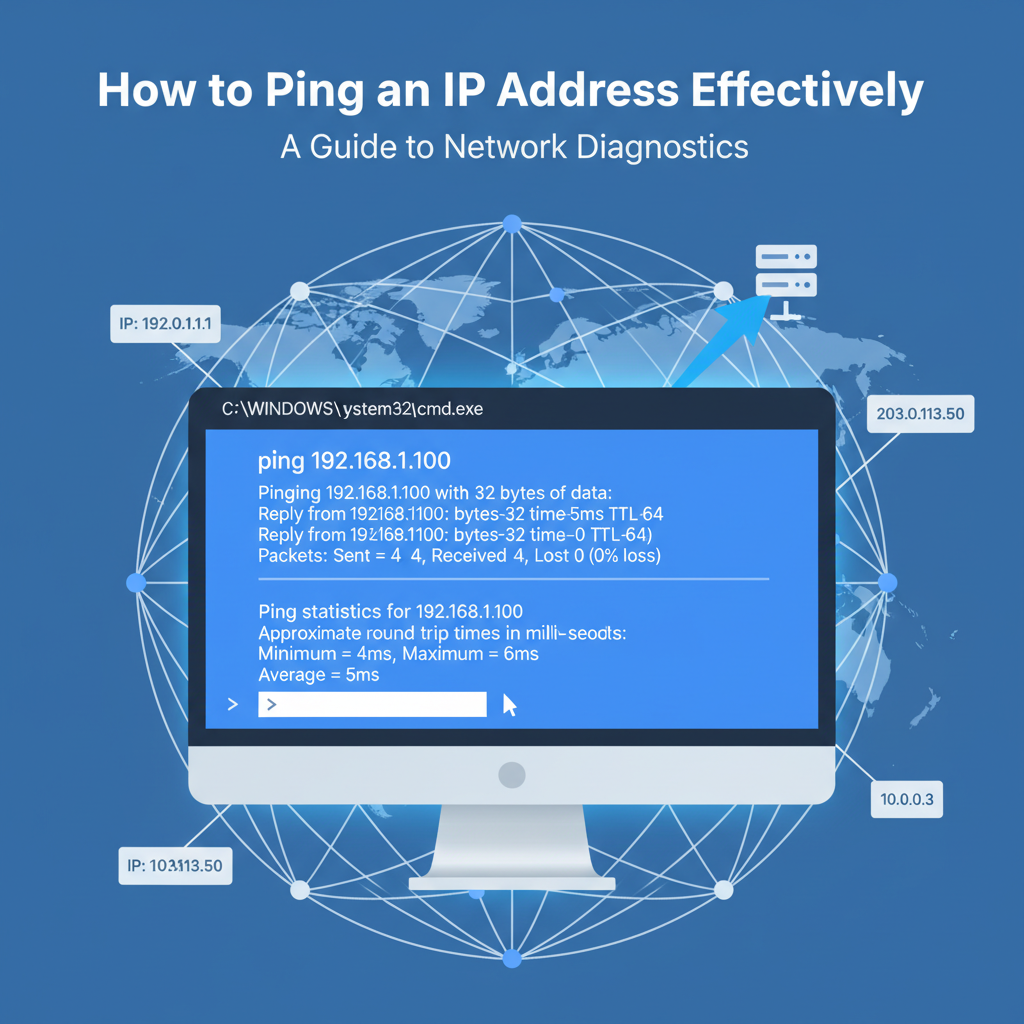
Understanding how to ping an IP address is essential for troubleshooting network issues or confirming connectivity between devices. This simple diagnostic tool allows users to quickly determine if a device is reachable online. In this guide, you’ll learn what ping is, how it works, and step-by-step instructions to ping any IP address with confidence.
Understanding and Using the Ping Command
The ping command, as defined by Wikipedia, is a computer network administration software utility used to test the reachability of a host on an Internet Protocol (IP) network. Its primary function is to send Internet Control Message Protocol (ICMP) Echo Request packets to the target host and wait for an Echo Reply, measuring the time it takes for packets to make a round trip. This seemingly simple process is fundamental for network diagnostics, as it quickly determines if a remote system is active and reachable.
Technically, when you initiate a ping, your device encapsulates ICMP Echo Request messages inside IP packets. These packets traverse the network to the specified address, and a cooperative host responds with ICMP Echo Reply packets. The ping utility records the round-trip time for each packet, and aggregates statistics about packet loss.
To ping an IP address on Windows: open Command Prompt, type ping [IP address] (e.g., ping 8.8.8.8), and press Enter. For macOS and Linux, open the Terminal and enter the same ping [IP address] command. On macOS and Linux, you may need to press Ctrl+C to stop the process after a few replies.
Interpreting ping results involves assessing these key elements:
- Round-trip time: Displayed in milliseconds (ms), this indicates how quickly packets travel to and from the target. Lower values generally mean faster connections.
- Packet loss: If any packets fail to return, the output reports a percentage of loss, signaling potential connectivity issues.
- Variability in response times: High variability may hint at network congestion or instability.
If a ping fails, first check for typos or network hardware issues. Disable firewalls temporarily to rule out blocking. If no results return, try pinging another known good address (like 8.8.8.8) to isolate the issue. For persistent failures, consider traceroute to identify where the connection breaks down, and verify hardware or ISP status.
Conclusions
Pinging an IP address is a fundamental network troubleshooting skill. By following the outlined steps, you can diagnose connectivity problems and ensure your devices can communicate effectively. Whether you’re a home user or IT professional, mastering the ping command helps keep your network running smoothly and efficiently.