

 Русский
 Bahasa Indonesia
 فارسی
فارسی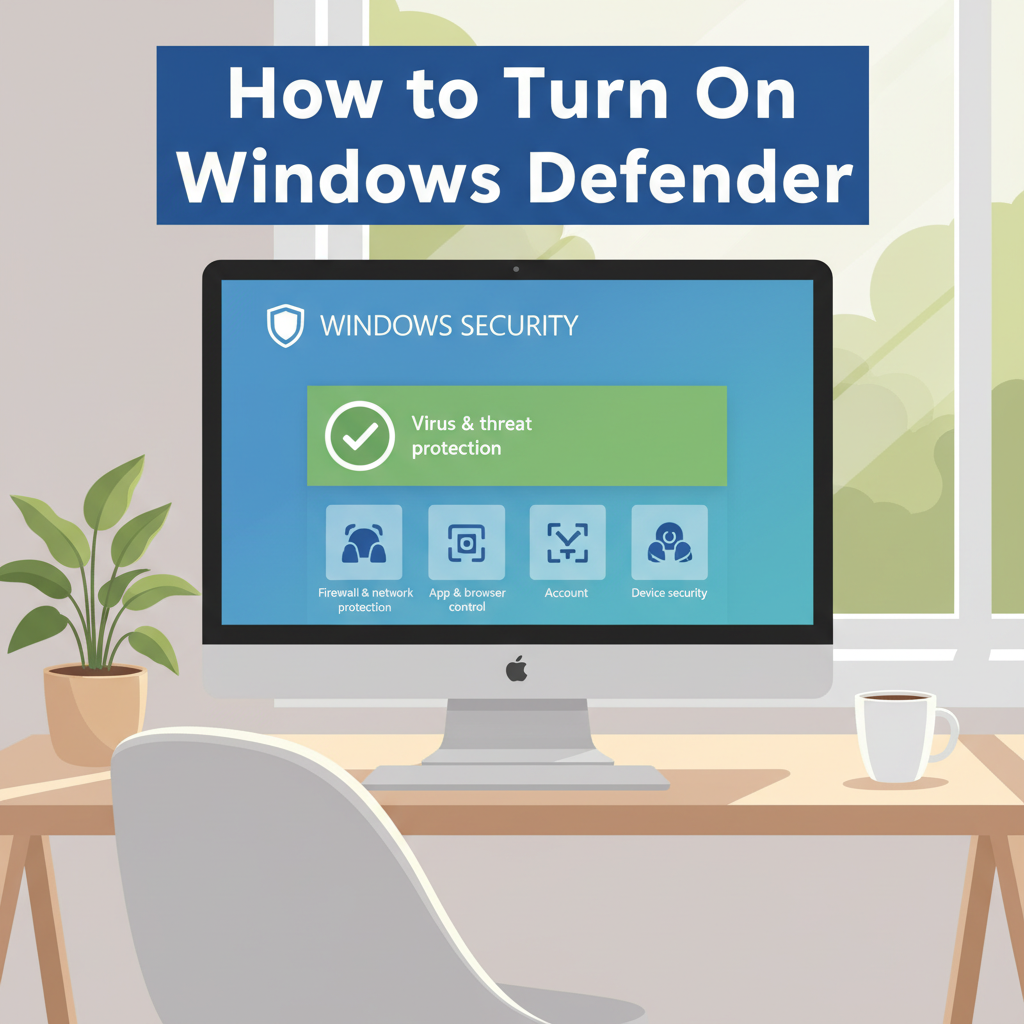
Windows Defender is a vital built-in security tool for Windows computers that helps protect against viruses, malware, and other threats. Knowing how to enable Windows Defender ensures your device remains safe and your personal data remains secure. This guide will walk you through the steps to turn on Windows Defender and manage its key settings for optimal protection.
Enabling and Managing Windows Defender
To enable Windows Defender on Windows 10 or Windows 11, the straightforward method is through the Windows Security app. Start by clicking the Start button and typing “Windows Security” in the search bar. Once it appears in the results, select it to open the dashboard. Inside, choose “Virus & threat protection” from the left pane. Here, you’ll find options related to your antivirus status. If you see a button labeled “Turn on,” simply select it, and Windows Defender will be activated.
Alternatively, you can access Defender through the Settings app. Press Windows Key + I to open Settings, then navigate to “Update & Security” (in Windows 10) or “Privacy & Security” (in Windows 11). Click on “Windows Security,” then select “Open Windows Security” to bring up the main interface as described above.
Ensure that Real-time Protection is enabled by selecting “Virus & threat protection settings” inside Windows Security. Toggle the switch for Real-time Protection to “On.” This setting keeps your system protected by continuously scanning for threats.
To confirm Defender is active, Windows Security should display a green checkmark with messages indicating everything is up to date and your device is protected. Windows Defender receives updates automatically via Windows Update, which means your virus definitions are always current as long as you allow automatic updates.
If you see notifications about third-party antivirus software, Defender may be disabled. It will often yield control to another installed antivirus. Uninstall or disable any third-party security software via the Control Panel or the apps list in Settings, then restart your PC to ensure Windows Defender activates as your primary antivirus.
From the main Windows Security screen, you can also launch virus scans, review your security history, and configure the integrated firewall. Click “Virus & threat protection” to run quick or full scans. Visit “Firewall & network protection” to view and modify firewall settings for various network profiles. For a complete overview of protection events and actions taken by Defender, select “Protection history”—this provides details on threats found, quarantined files, and system actions, which helps users confidently manage device security.
Conclusions
Activating Windows Defender protects your device from malicious threats and keeps your data secure. Following the steps in this guide will ensure your computer has essential, up-to-date protection running in the background. Stay vigilant by occasionally checking Windows Defender’s status and updating your system for ongoing peace of mind.