

 Русский
 Bahasa Indonesia
 فارسی
فارسی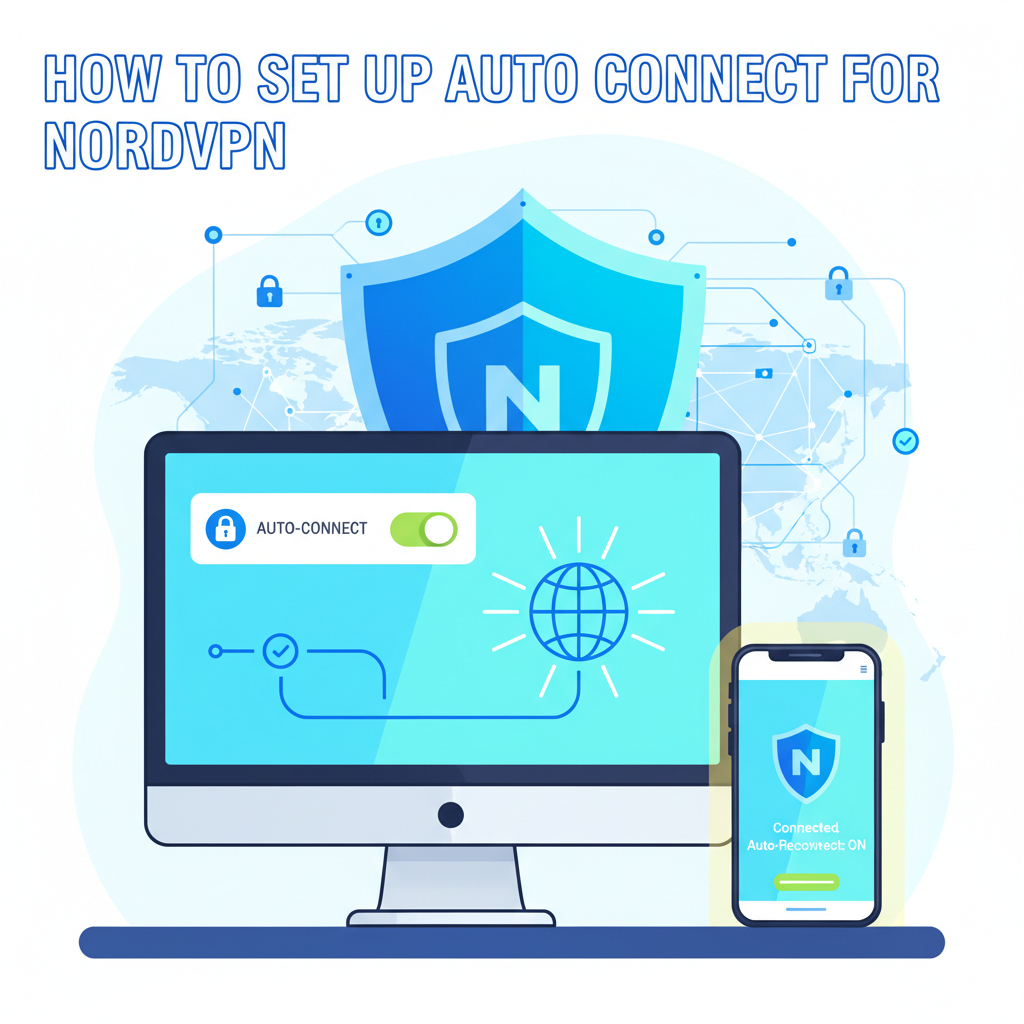
Setting up auto connect for NordVPN ensures that your device is always protected whenever you go online. This feature is crucial for maintaining your privacy, especially on unsecured networks. In this article, we walk you through the process in detail, highlighting essential settings and tips to help you make the most of NordVPN’s auto connect feature.
Configuring Auto Connect in NordVPN
Configuring Auto Connect in NordVPN is a straightforward process, but maximizing its potential requires attention to key settings and thoughtful customization aligned with your usage patterns. Let’s break down the steps for Windows, macOS, Android, and iOS devices while highlighting crucial details for optimal security.
For Windows and macOS users, start by launching the NordVPN application. In the main dashboard, locate the gear icon to access Settings. From there, find the Auto-connect tab in the left sidebar. Use the toggle to activate Auto-connect. You’ll then see options to choose your preferred VPN protocol and server location. For the greatest security, select “NordLynx” or “OpenVPN” as your protocol and choose “Recommended Server” or manually specify a region if you frequently access services in specific countries. To ensure you’re always protected, enable the option to auto-connect on system startup. Under “Trusted Wi-Fi networks,” deselect all networks; this way, NordVPN will always establish a connection, especially when joining new or public Wi-Fi.
For Android and iOS devices, open the NordVPN app and tap the gear icon for Settings. On Android, choose Auto-connect; on iOS, look for VPN Auto-Connect. Set it to Always or select specific scenarios, such as when joining new or unsecured Wi-Fi networks. Opt to auto-connect on all networks for the most consistent protection.
If your connection isn’t working as expected, try updating the app, switching between protocols, or resetting your preferred server. Consult NordVPN’s official documentation or contact support for advanced troubleshooting. Correctly configuring Auto Connect not only streamlines your daily VPN usage but also maintains strong protection, especially on public networks.
Conclusions
Enabling auto connect on NordVPN is a smart way to safeguard your privacy and maintain online security at all times. By following the steps outlined, you ensure that your VPN protection is seamless and reliable. Taking a few moments to configure these settings can lead to long-term peace of mind as you browse securely, wherever you are.